Developer Tools
The API Builder for custom HTTP endpoints, and the GraphQL Playground.
The Developer sidebar group has two pages: Endpoints (/endpoints, the API Builder)
and Playground (/playground, the GraphQL Playground). Both operate purely on top of
Atom GraphQL — neither inspects raw database tables, and neither ships any product-specific
mutations. See Endpoints for the underlying custom-endpoint execution model.
Endpoints (API Builder)
Custom HTTP routes backed by an Atom GraphQL operation, with request validation, variable mapping, response mapping, and execution auth controls — a way to expose a stable REST-style facade over a GraphQL operation without writing backend code.
Columns: Key, Name, Method, Path, Operation, Status (draft until you
promote it), Actions.
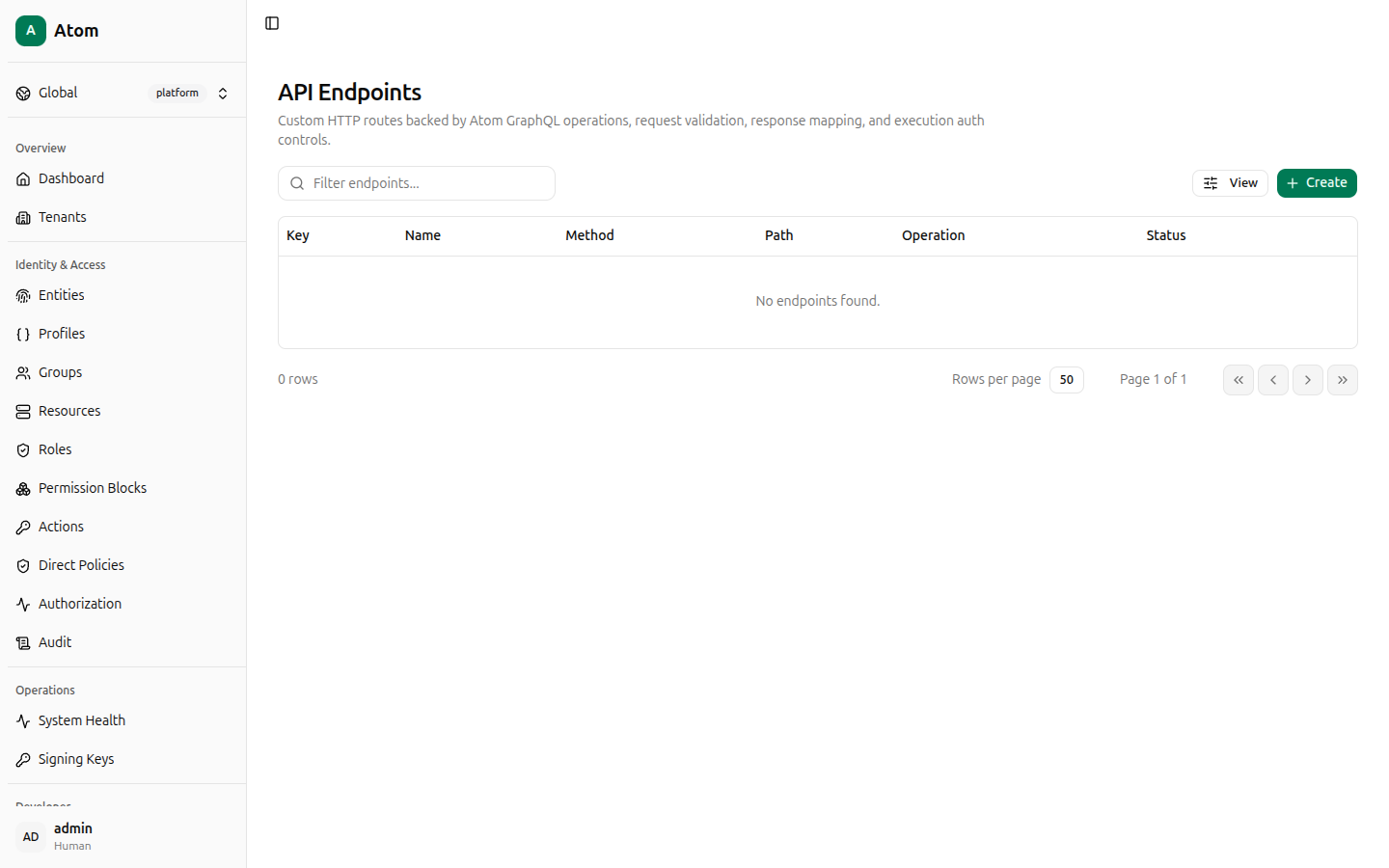
Create an endpoint
Click + Create. You can start from a blank form or a Start from a template dropdown covering common operations: Health Check, Create/Update Tenant, Create/Update Entity, Create/Update Resource, Create Direct Policy, Update Policy, and Authorization Check.
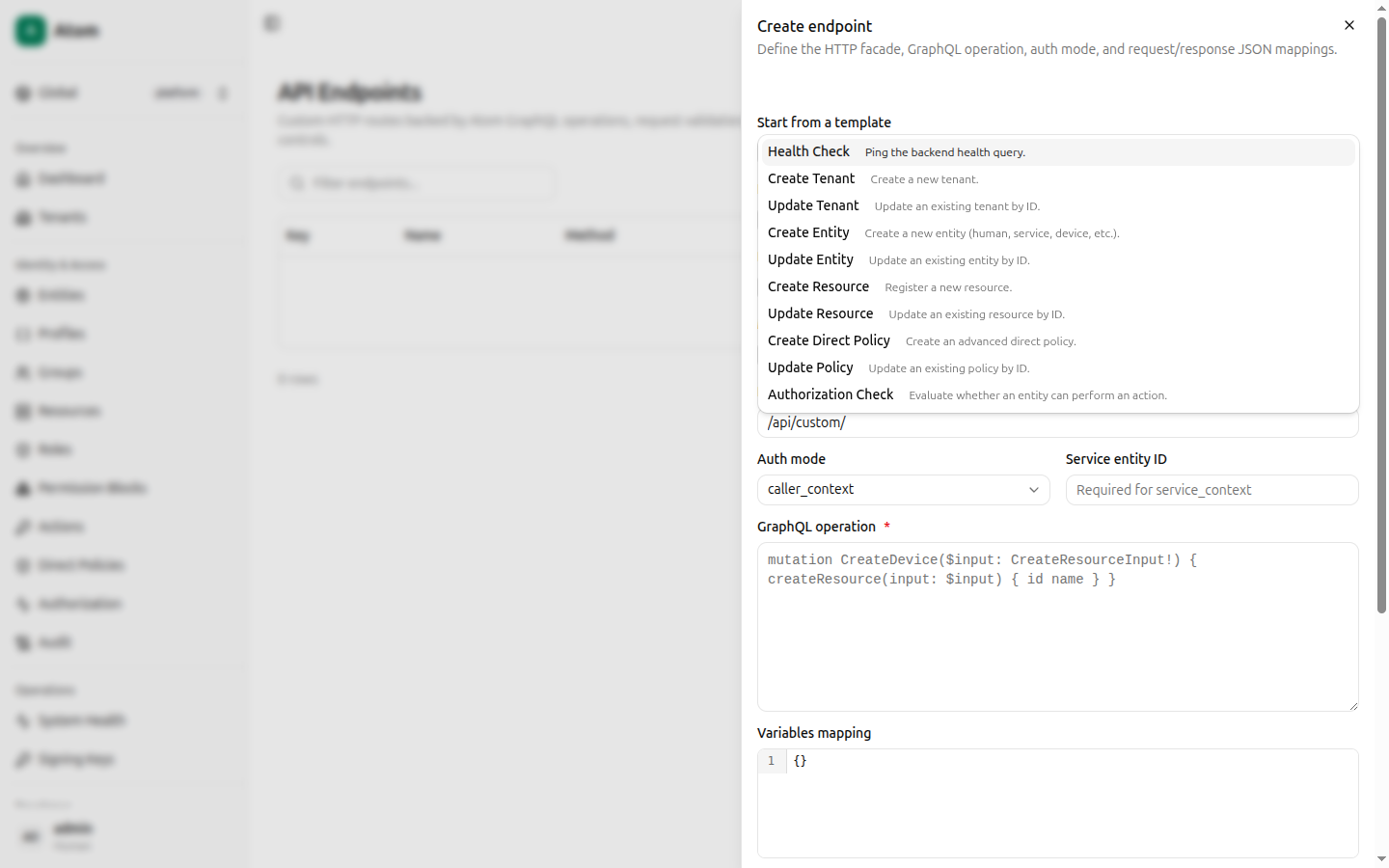
Picking a template pre-fills every field below it — for example Health Check fills in:
- Key:
health_check - Name:
Health Check - Description:
Returns OK when the backend is reachable. - Method:
GET - Operation:
query - Status:
draft - Path:
/api/custom/health - Auth mode:
caller_context - GraphQL operation: the raw query/mutation document
- Variables mapping, Request schema, Response mapping: JSON objects mapping incoming HTTP request data to GraphQL variables and shaping the JSON response
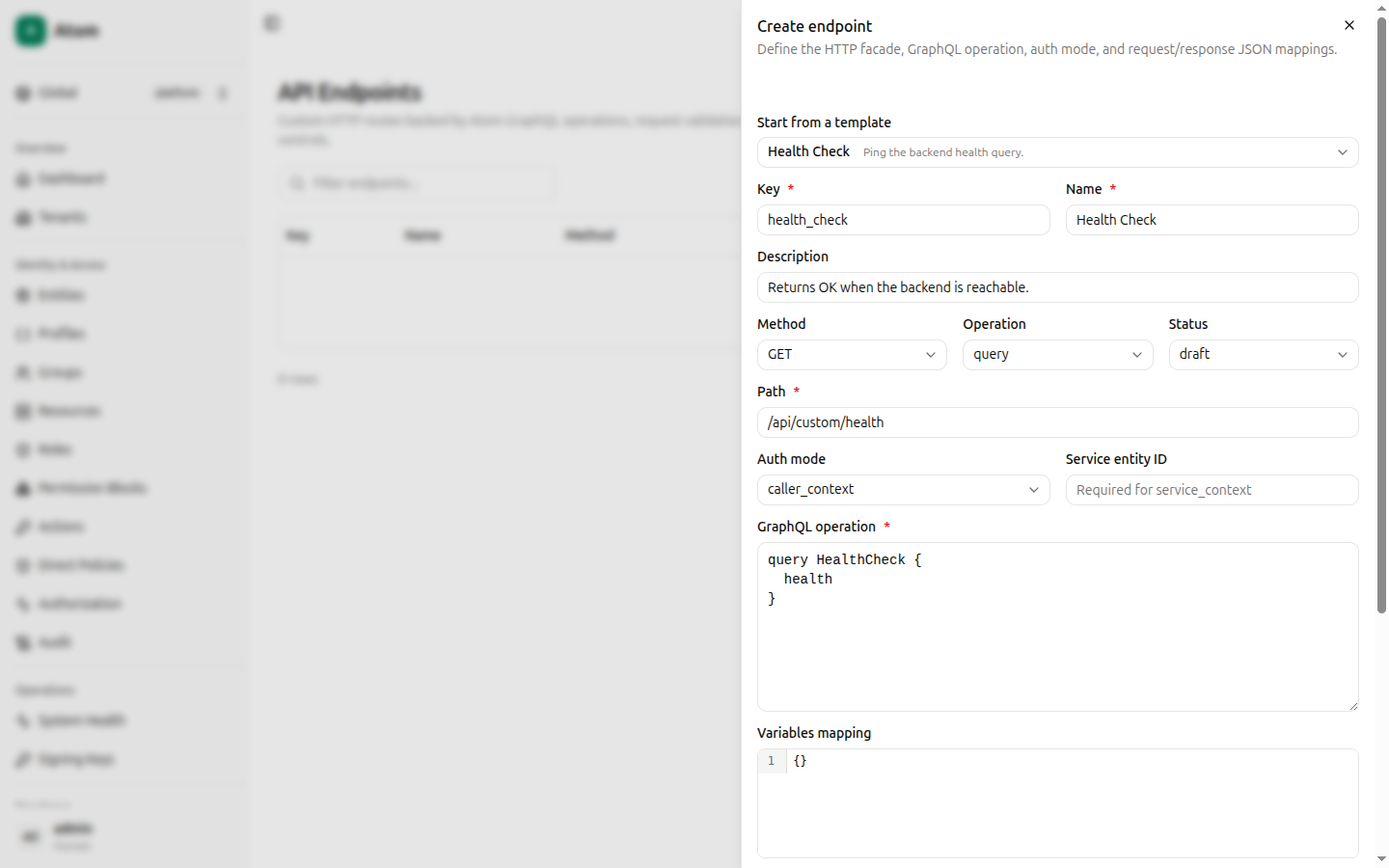
Click Save. Fields you'd typically customize for your own endpoint:
- Key / Name / Description — identifiers and documentation.
- Method —
GET,POST, etc. - Operation —
queryormutation, matching the GraphQL operation type. - Status —
draftuntil you're ready to make it callable; promote it once tested. - Path — the HTTP path under
/api/custom/. - Auth mode —
caller_context(executes as the calling entity) or a service-entity mode using Service entity ID for backend-to-backend calls. - GraphQL operation — the query/mutation document to execute.
- Variables mapping / Request schema / Response mapping — JSON objects controlling how the HTTP request maps to GraphQL variables, what shape the request body must have, and how the GraphQL response maps back to the HTTP response.
Row actions
- Inspect — view the full configuration and test it live.
- Edit — change any field.
- Disable — deactivate the endpoint.
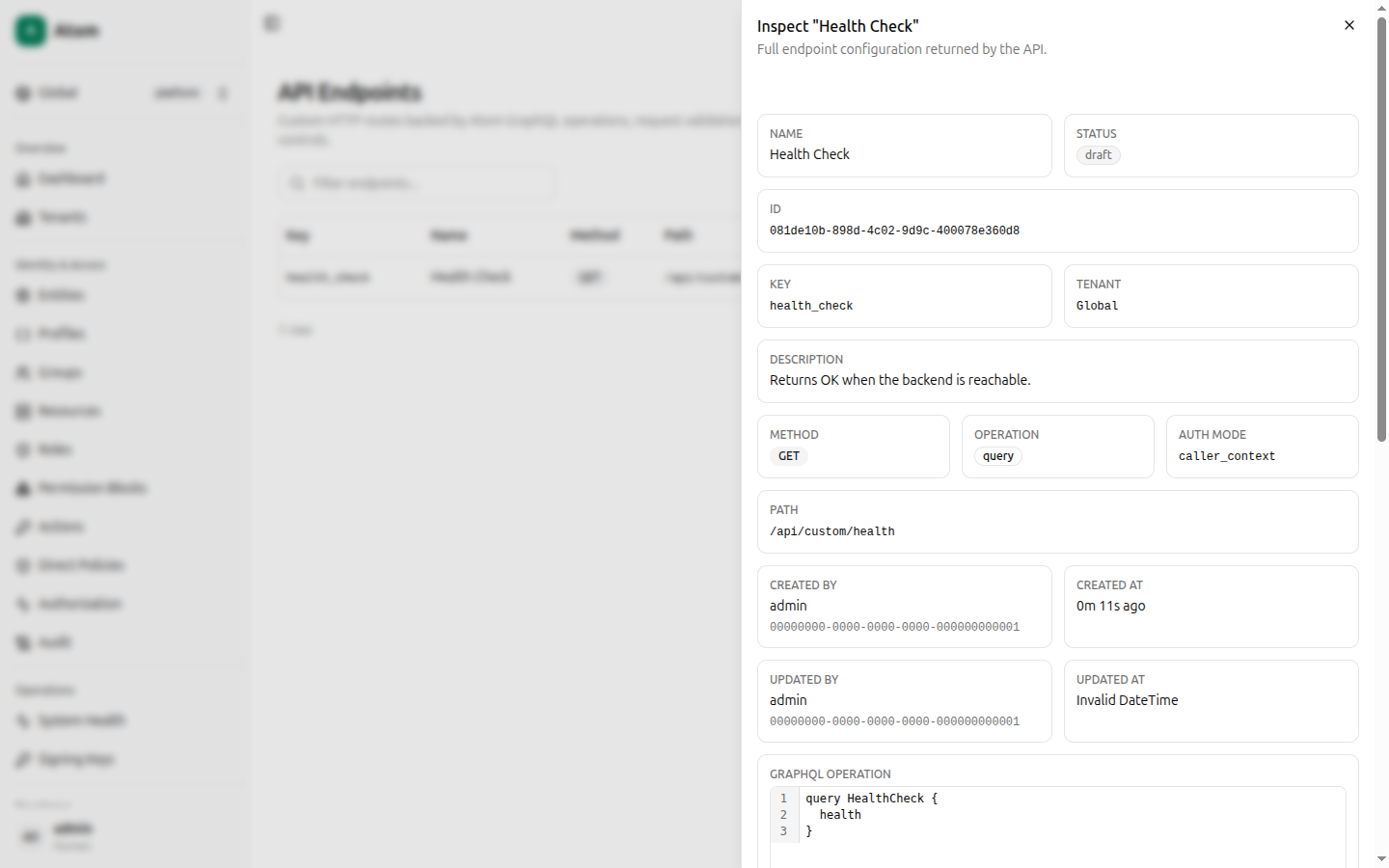
Inspect and test
Shows every configuration field read-only, plus creation/update metadata, and a Test
Endpoint panel at the bottom showing the method and path, a JSON body editor, and a Test
endpoint button — disabled while the endpoint's Status is draft. Promote the endpoint
to active status to enable live testing from this panel.
Playground
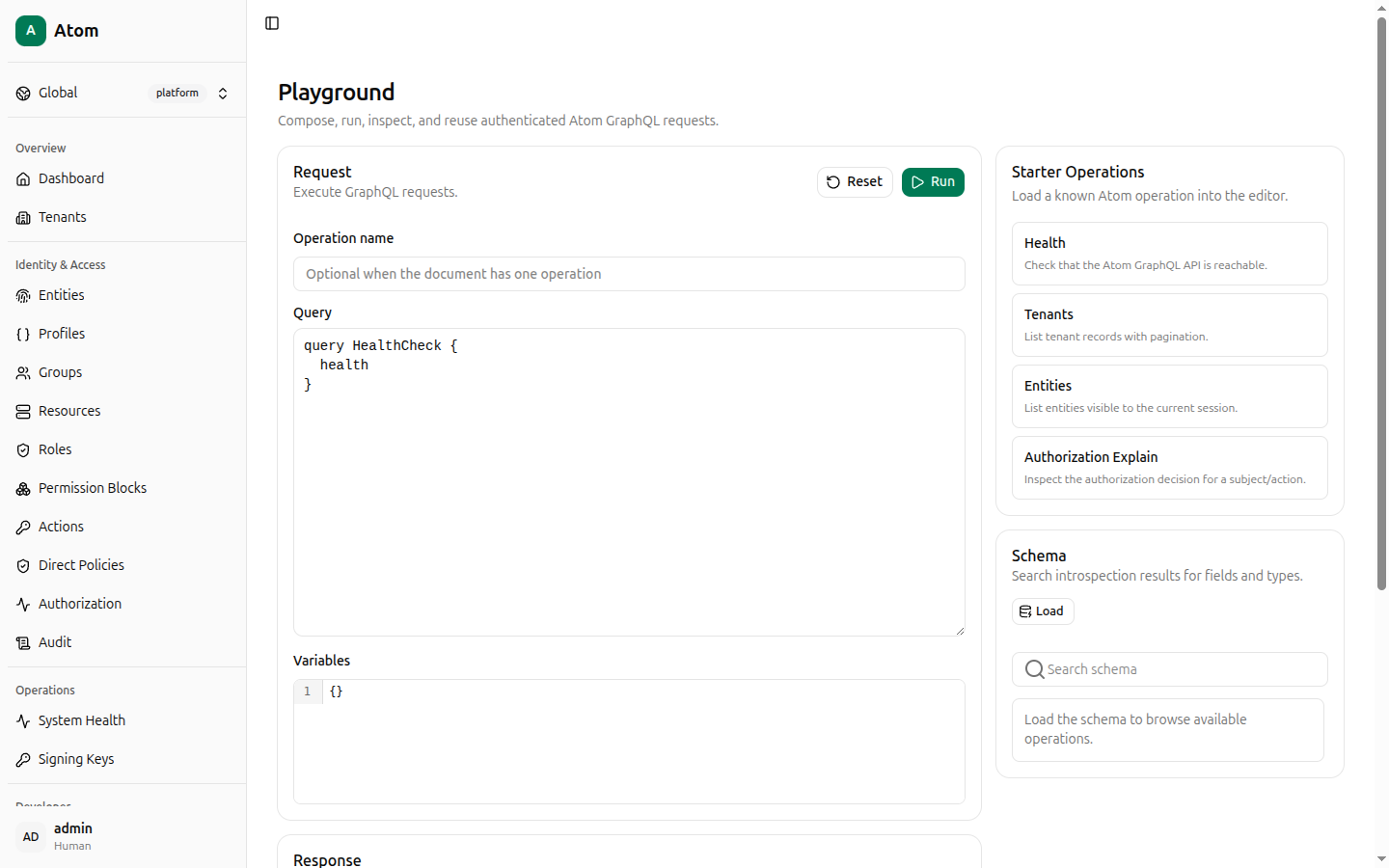
Compose, run, inspect, and reuse authenticated Atom GraphQL requests, without leaving the
browser or crafting your own curl command.
Running a request
- Operation name — optional when the document has exactly one operation.
- Query — the GraphQL query/mutation document.
- Variables — a JSON object of variables, defaults to
{}.
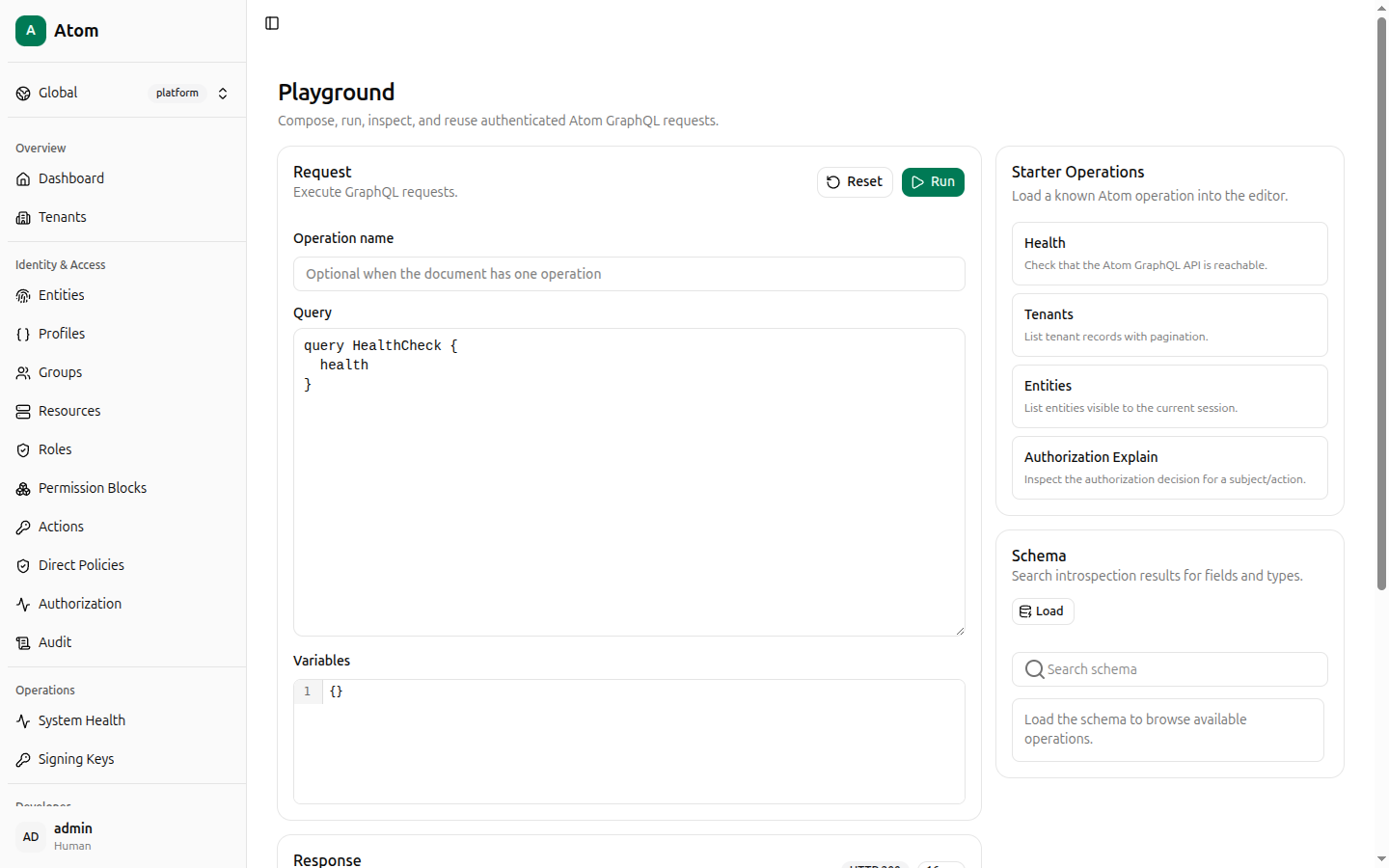
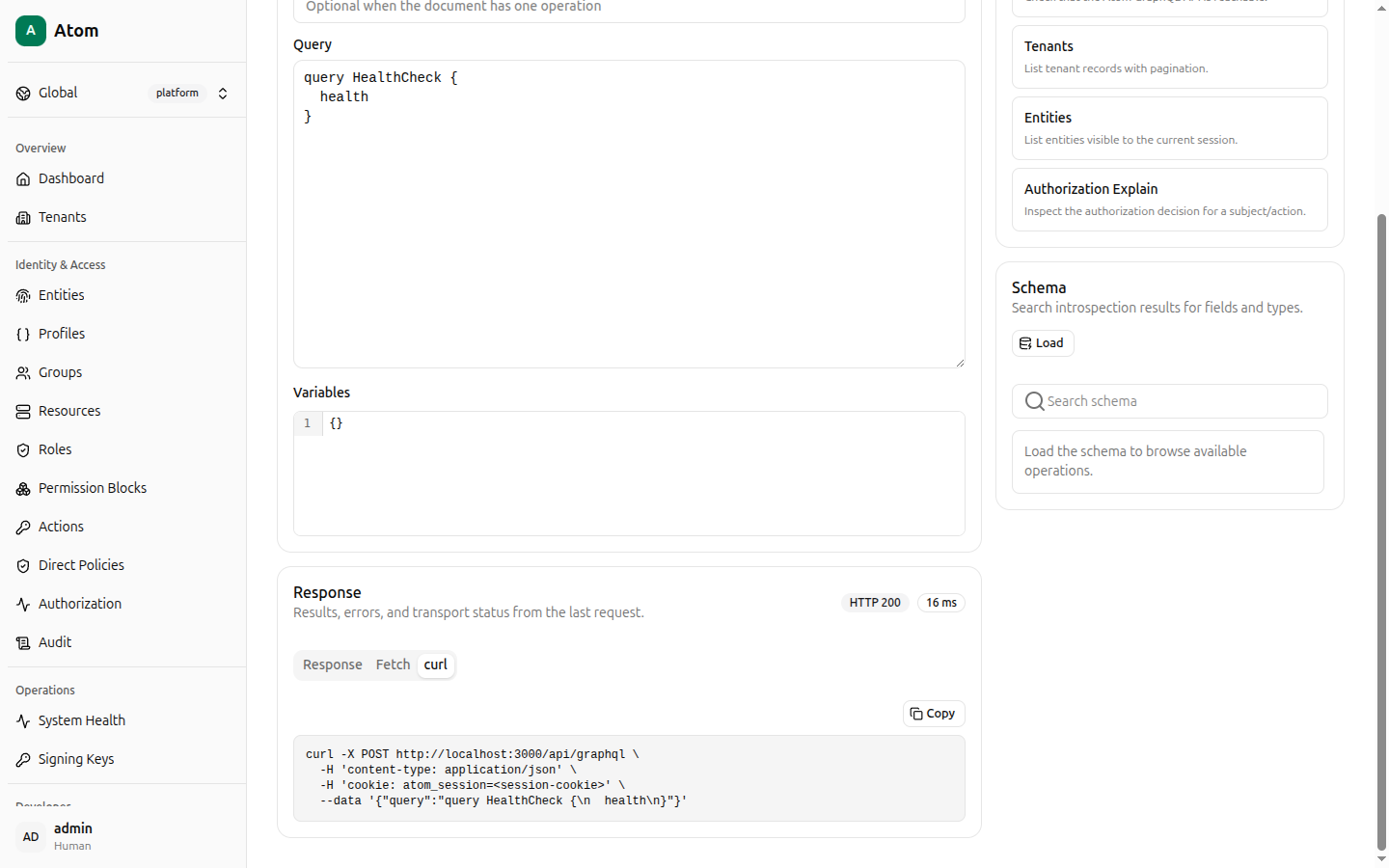
Click Run. The Response panel shows the HTTP status and duration, with three tabs:
- Response — the JSON response body.
- Fetch — an equivalent
fetch()snippet. - curl — an equivalent
curlcommand, including the session cookie header, ready to paste into a terminal.
Starter Operations
Four ready-made queries you can load into the editor with one click: Health, Tenants (paginated list), Entities (visible to the current session), and Authorization Explain (the same check the Authorization debugger performs, expressed as raw GraphQL).
Schema
Click Load under Schema to fetch GraphQL introspection results, then use Search schema to find fields and types by name — useful when building a custom endpoint and you need to confirm an exact field or argument name.