Entities
Humans, devices, services, workloads, and applications managed as first-class principals, including their credentials.
Entities (/entities) are Atom's principals — every human, device, service, workload, or
AI agent that can authenticate or be authorized is an entity. There is no separate "user"
table: humans are entities with kind: human, exactly like a device is kind: device. See
Atom In Simple Words for why this matters.
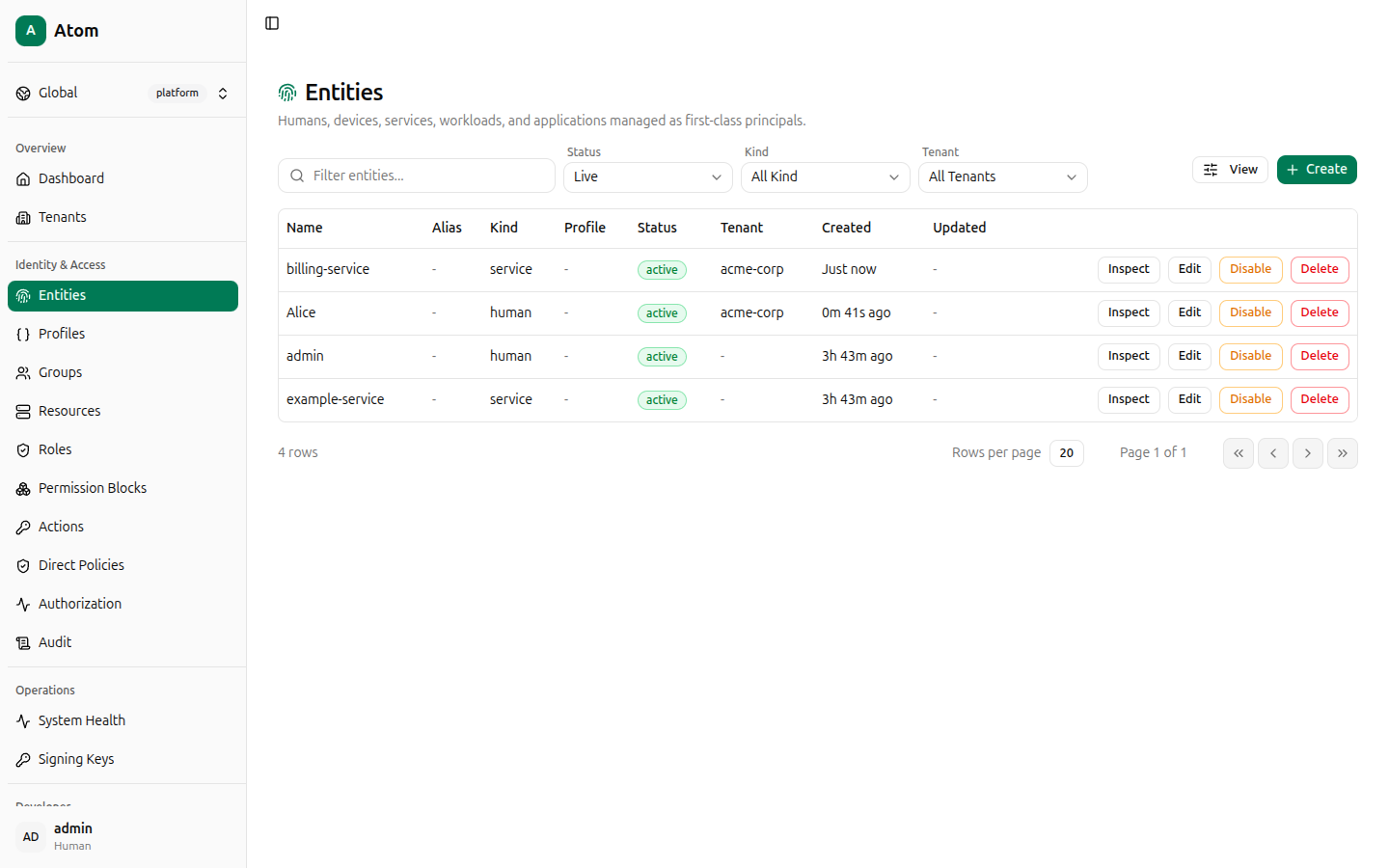
Entities table
Columns: Name, Alias, Kind, Profile, Status, Tenant, Created,
Updated. Filter by the search box, Status (Live plus disabled), Kind, and
Tenant.
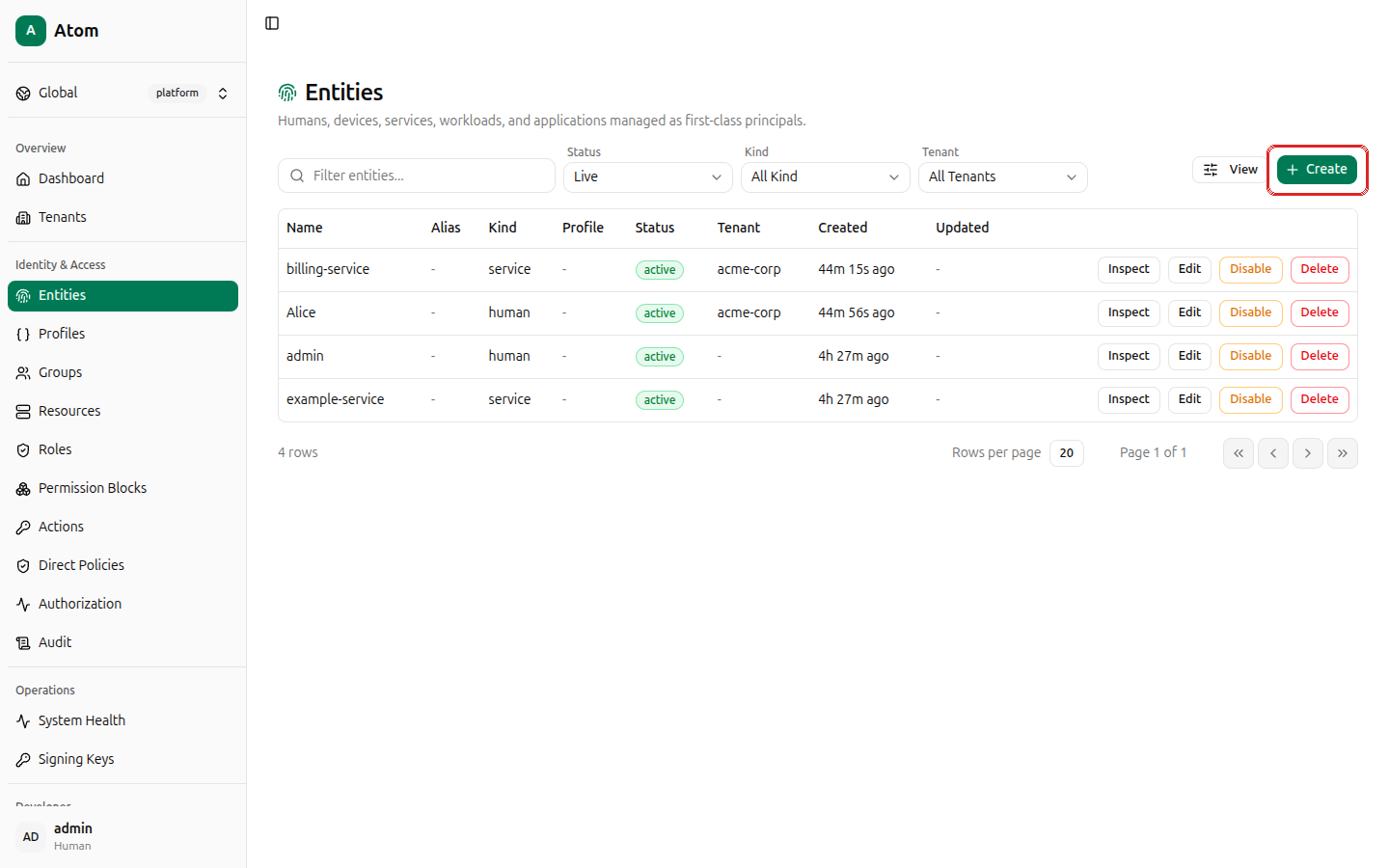
Create an entity
Click + Create.
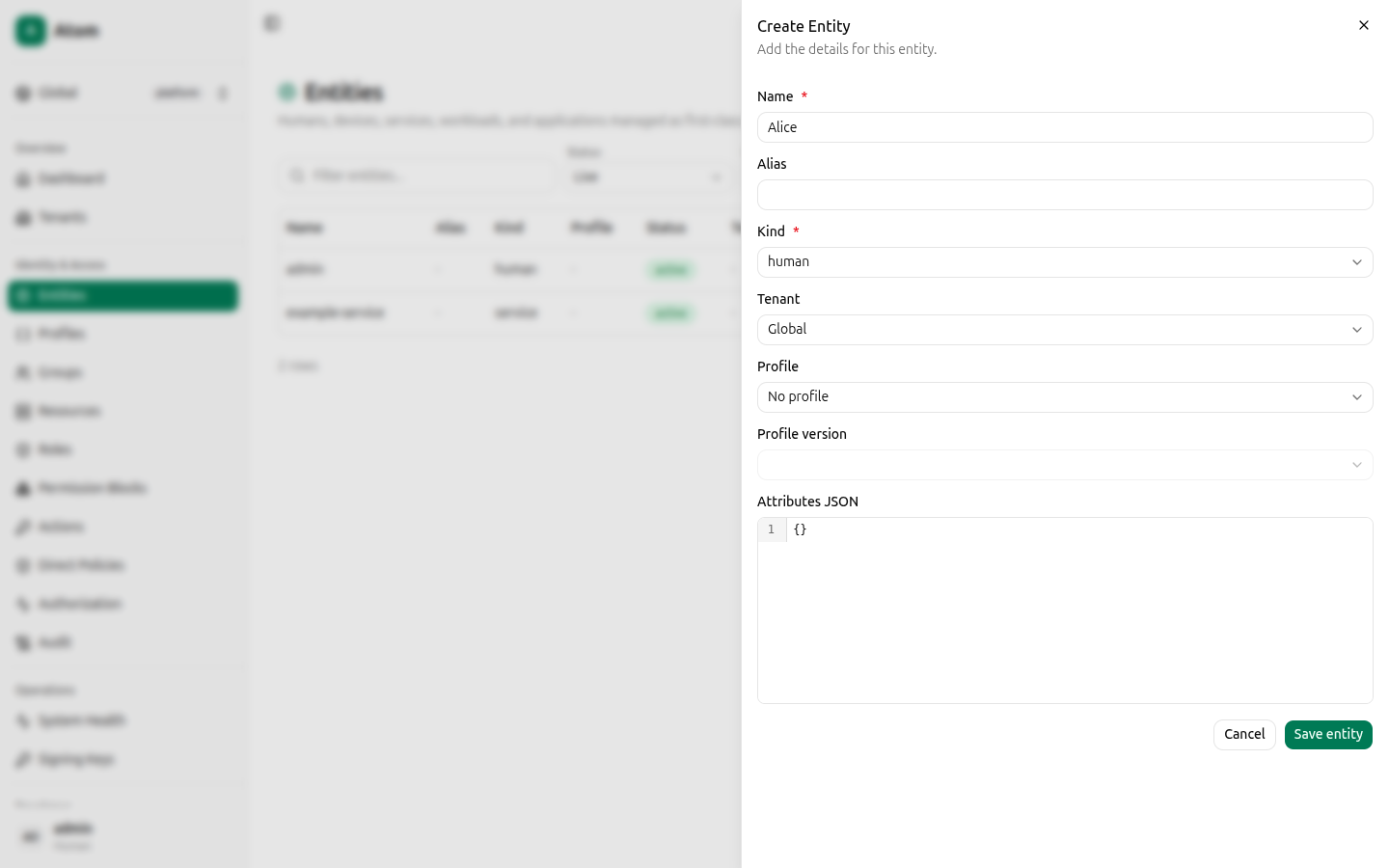
Fields:
- Name (required).
- Alias — optional short identifier.
- Kind (required) — one of
human,device,service,workload,application. - Tenant — defaults to Global; pick a tenant to scope the entity to it.
- Profile / Profile version — optionally attach a profile. If
a profile is selected, Atom derives the internal entity
kindfromprofile.kind, and the Profile version field becomes available to pin a specific schema version (otherwise the active/latest version is used). - Attributes JSON — free-form metadata, defaults to
{}. If the chosen profile defines schema fields, this form can render dedicated inputs for them instead of raw JSON — see Profiles.
The Kind dropdown lists all five values:
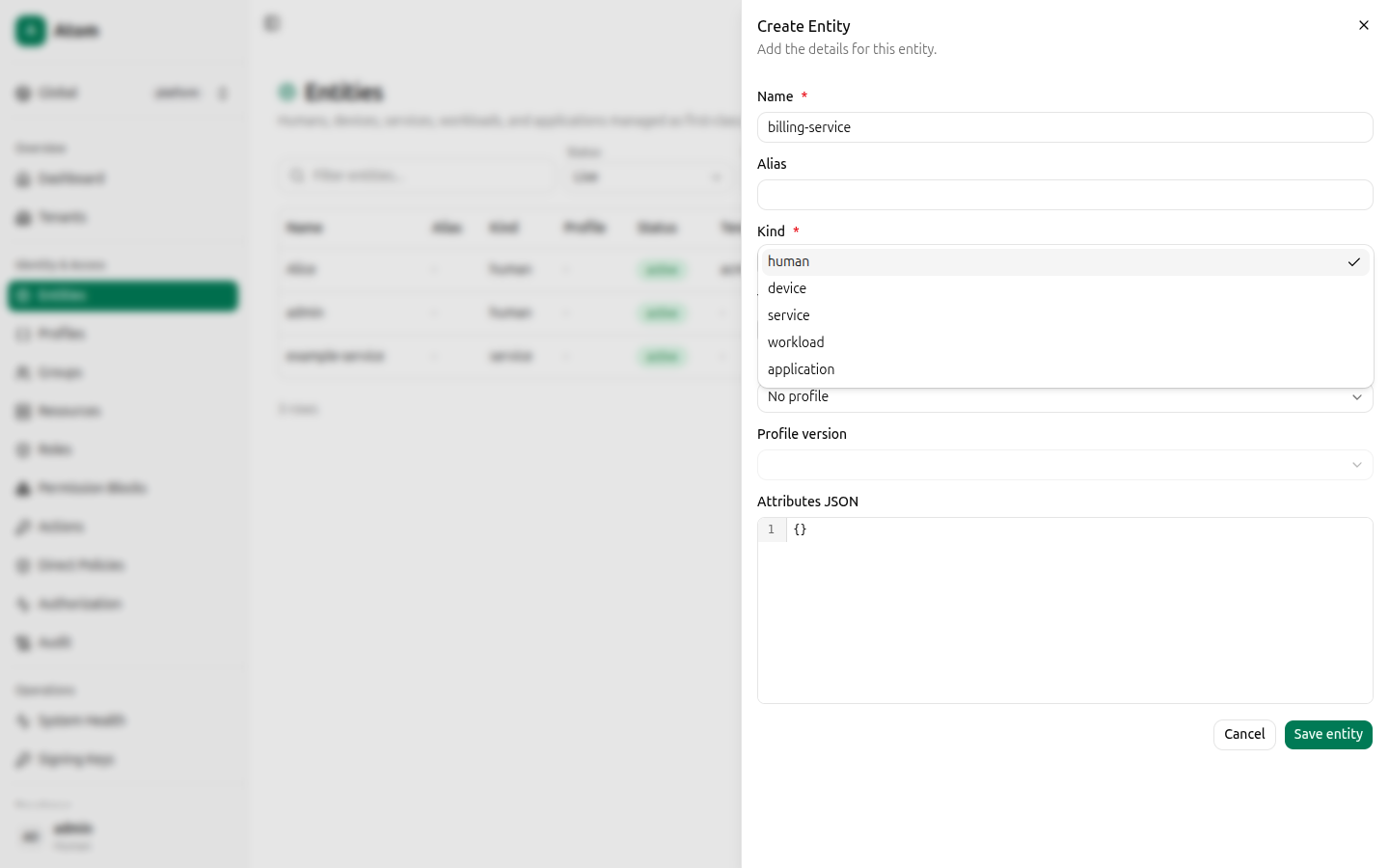
Click Save entity.
Row actions
- Inspect — opens the entity detail dialog (below).
- Edit — change name, alias, tenant, profile, or attributes.
- Disable — deactivate the entity (it stops authenticating/authorizing but its history is preserved).
- Delete — permanently remove the entity.
Inspect: Details tab
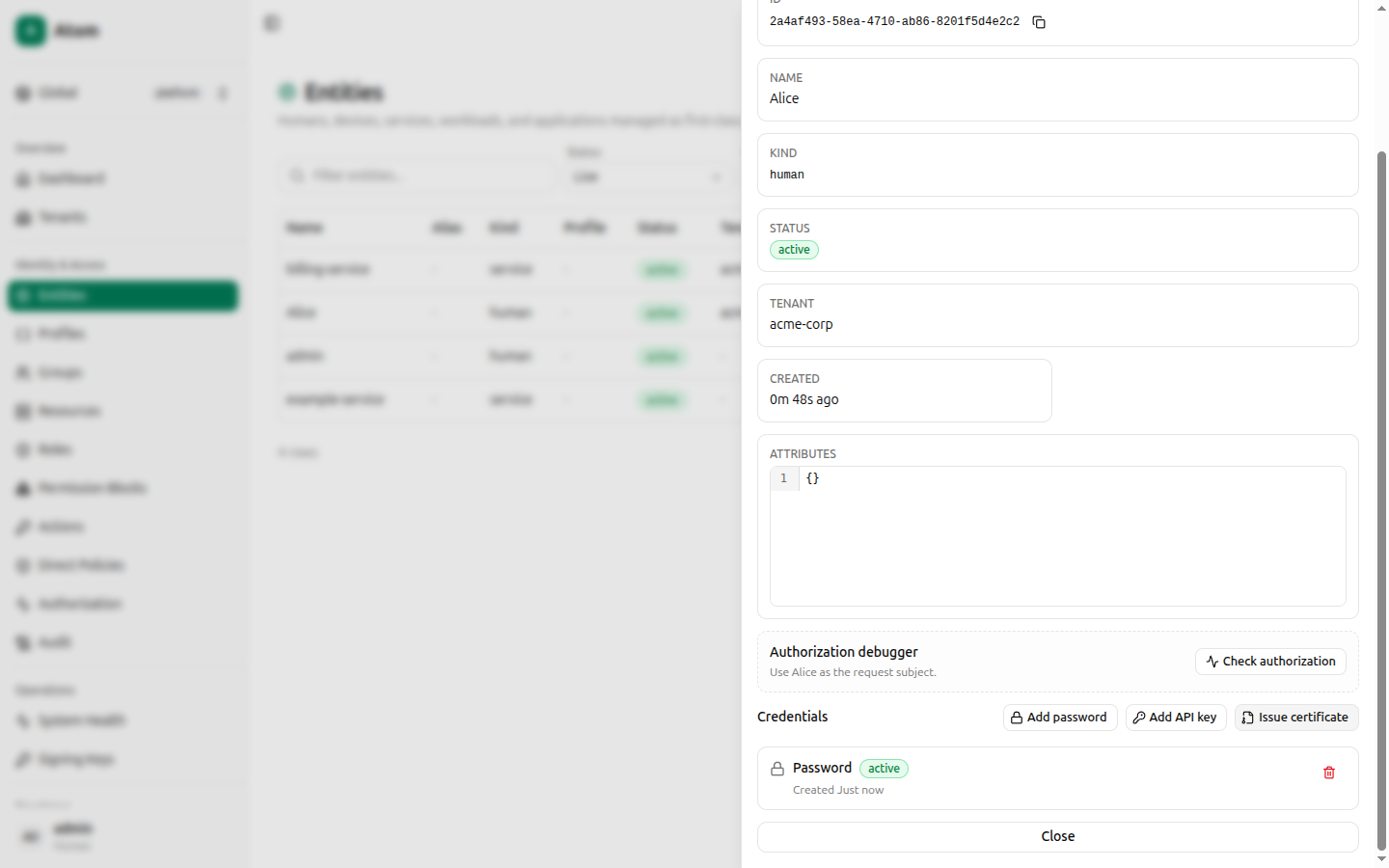
Shows ID (with copy button), Name, Kind, Status, Tenant, Created, and Attributes. Two functional sections live below the read-only fields:
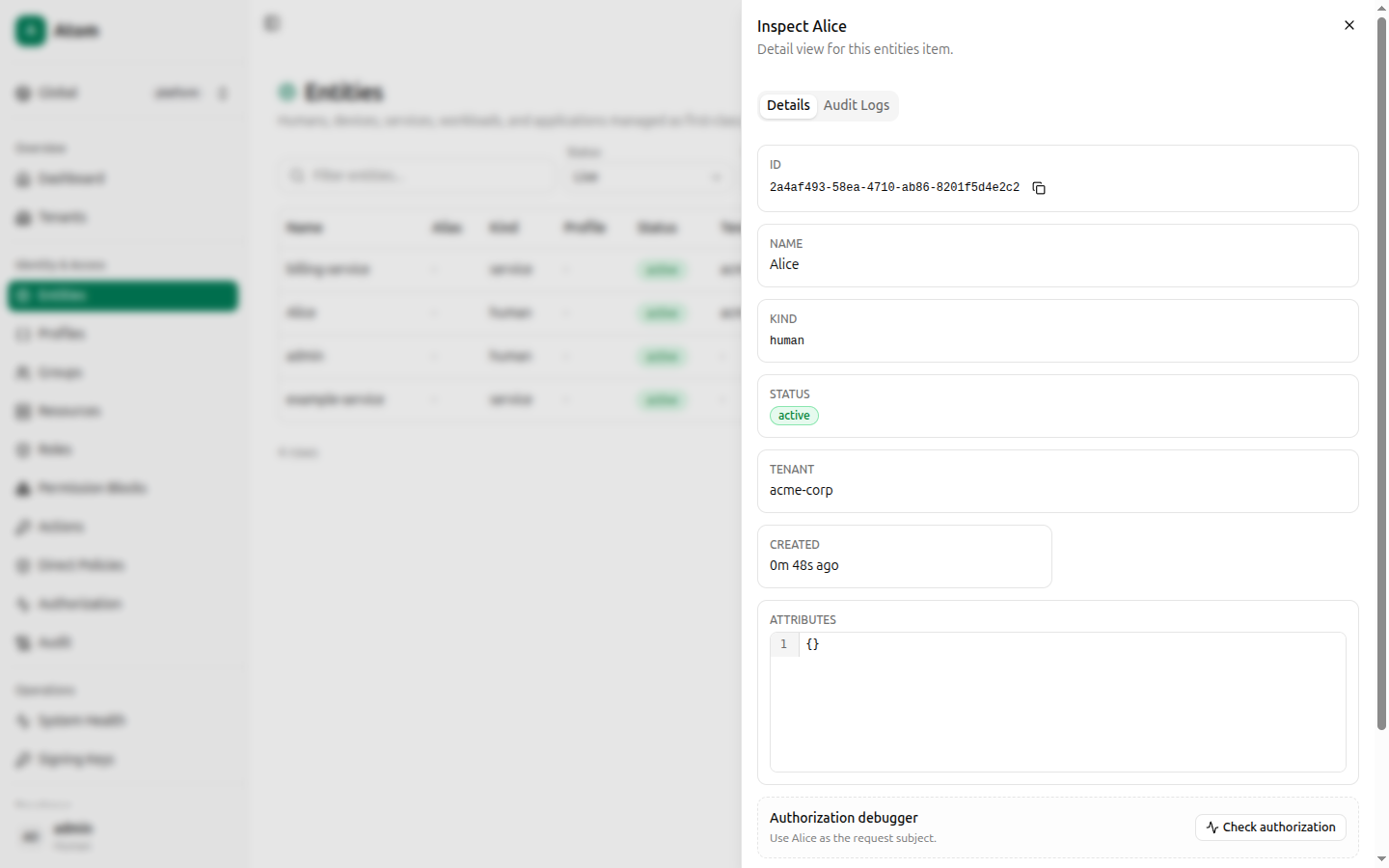
Authorization debugger — a Check authorization button that jumps straight to
Authorization with this entity pre-filled as the subject
(?subjectId=<id>), so you can immediately test what it can do.
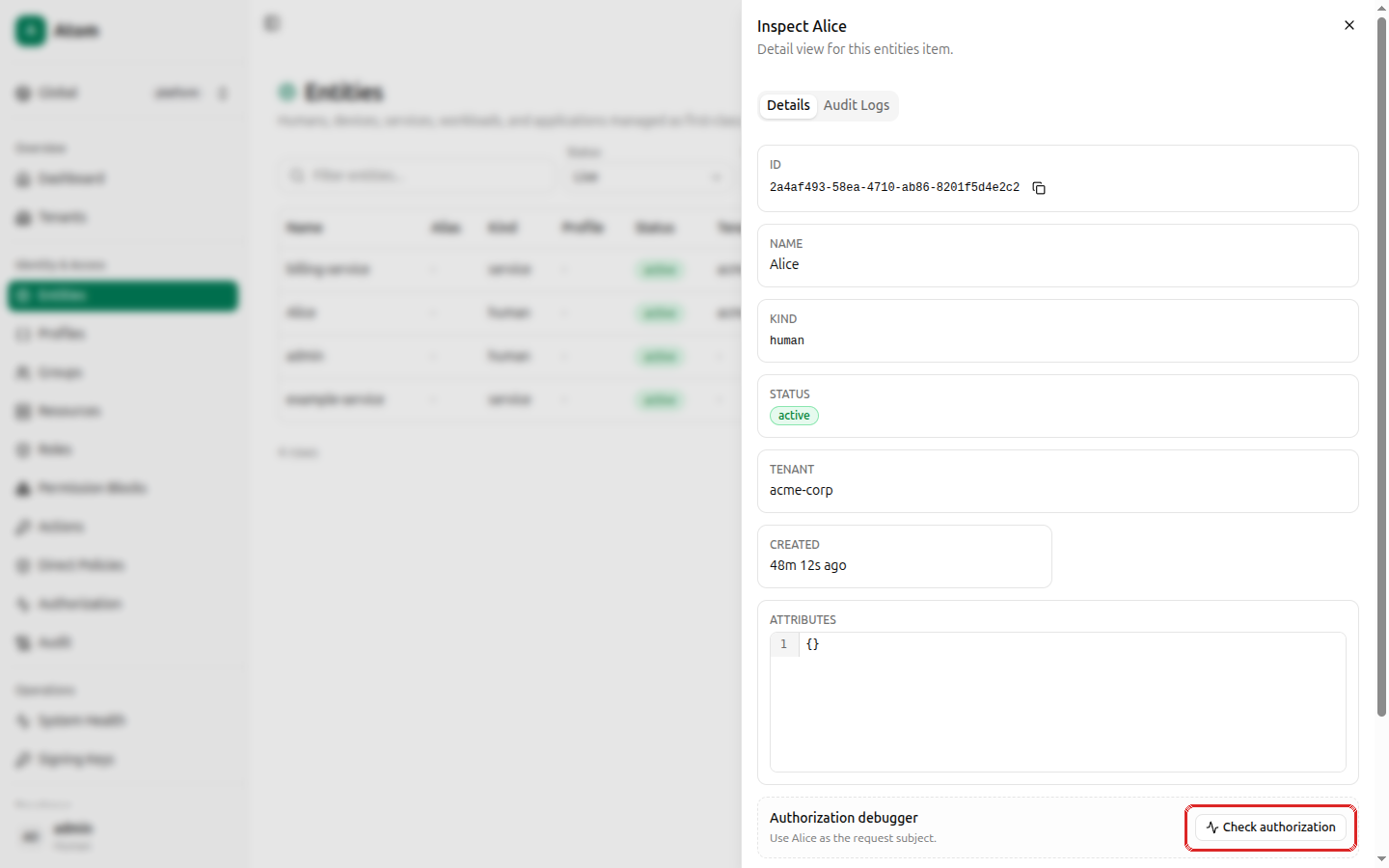
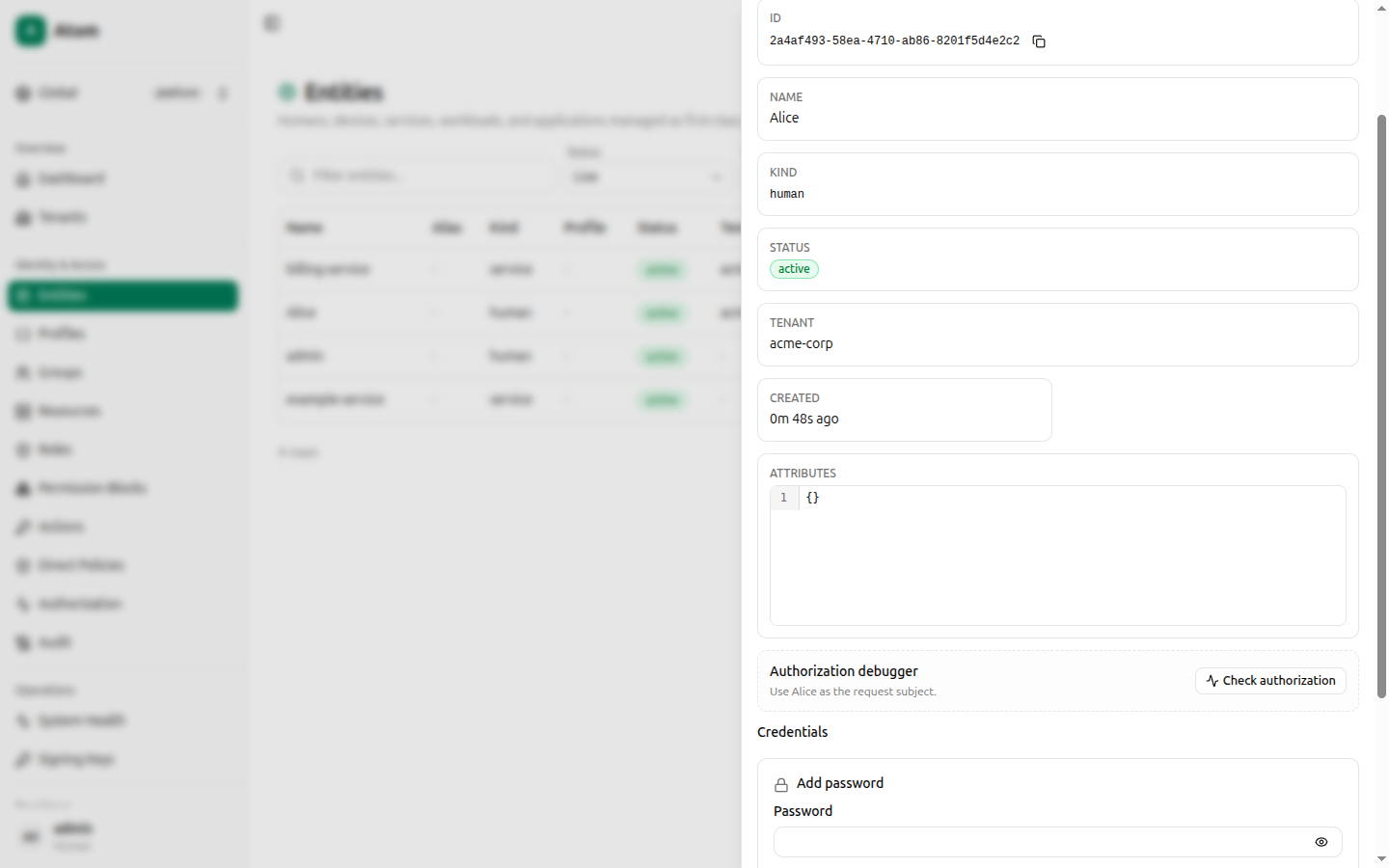
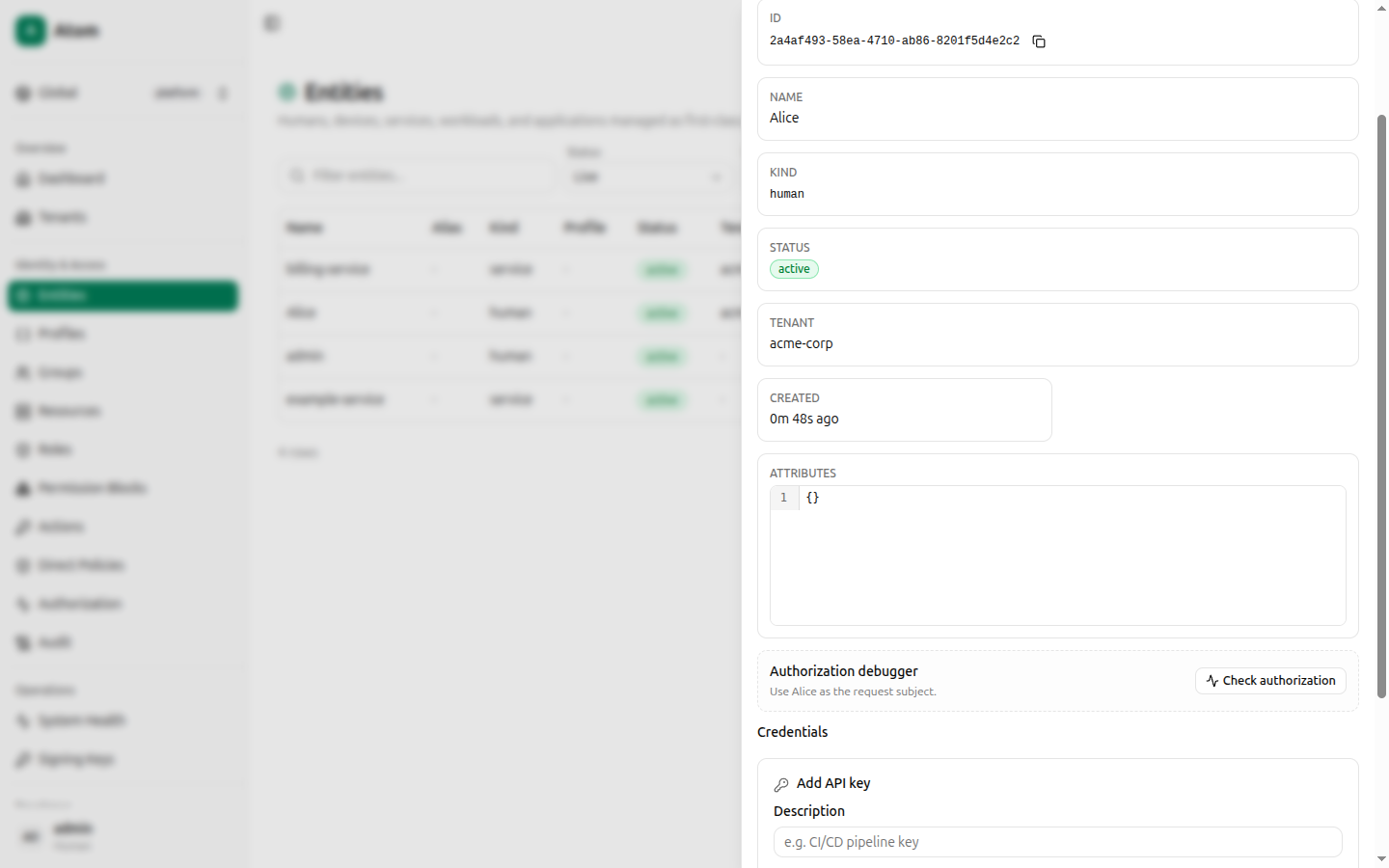
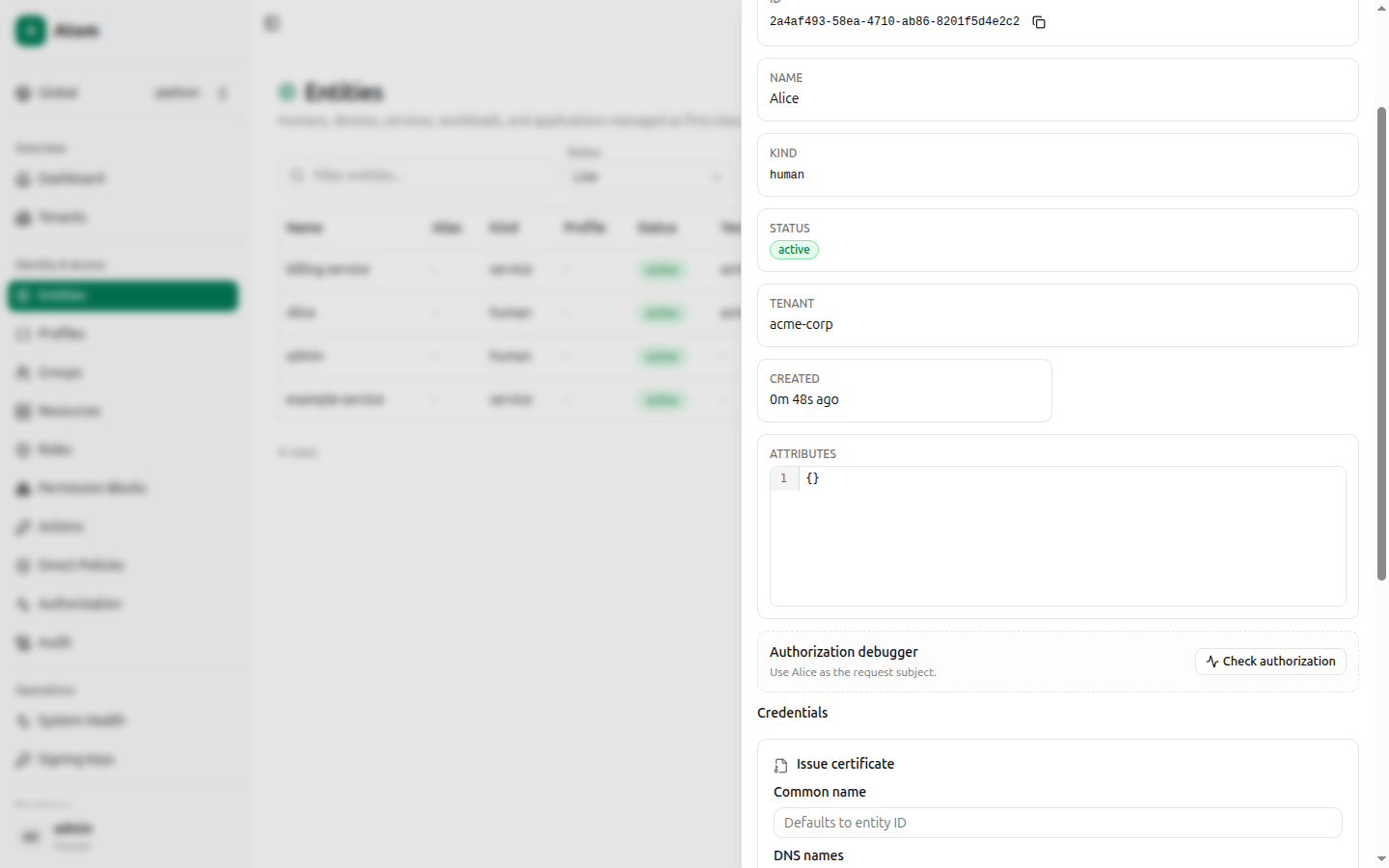
Credentials — three buttons to issue new credentials for this entity, and a list of existing ones below.
Add password
Click Add password to reveal an inline form: Password and Confirm password, with Cancel/Create buttons.
On success, the credential appears in the list with kind Password, status active, a creation timestamp, and a Revoke button.
Add API key
Click Add API key for an inline form: Description and Expires at (defaults to No expiry, click to open a date/time picker), with Cancel/Create.
Issue certificate
Click Issue certificate for an inline form covering mTLS enrollment: Common name, DNS names, IP addresses, TTL seconds, and a CSR PEM textarea for certificate-signing-request based issuance. See Certificates for the full certificate lifecycle (CA files, CRL, OCSP).
Any active credential shows a Revoke button in the credentials list.
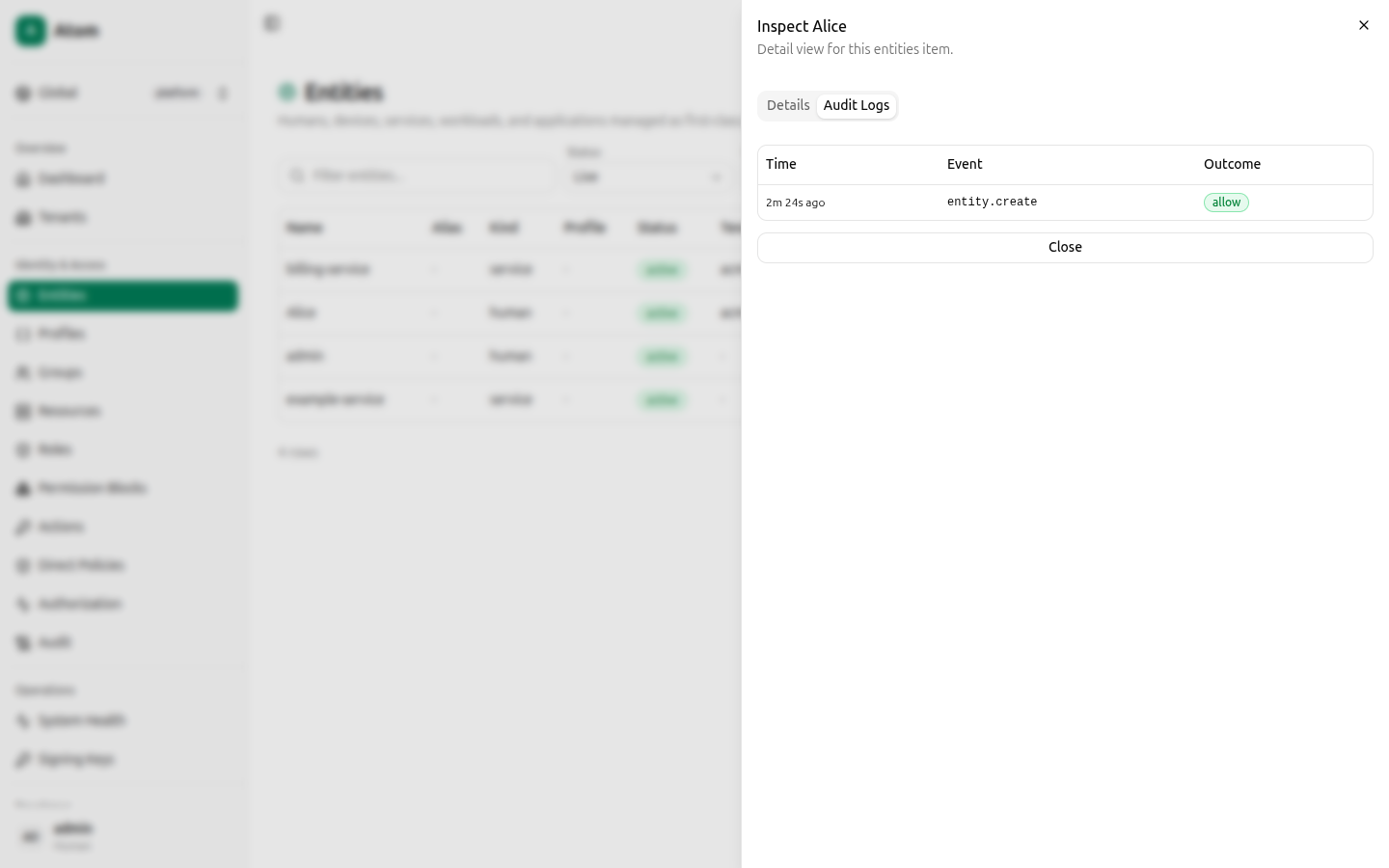
Inspect: Audit Logs tab
Lists every recorded event for this entity — event name (for example entity.create),
outcome (allow/deny), and a relative timestamp. This is a scoped view of the platform-wide
Audit log.